
Enable/Disable Booking Calendar #
When creating or editing an event, you can choose whether your event should use a booking calendar.
By default, the booking calendar is disabled. When the booking calendar is disabled, the event works as a standard one-time event with one start date and time, and one end date and time.
When the booking calendar is enabled, you can create booking dates and time slots for your event. This is useful for recurring events, timed-entry events, daily admissions, appointments, tours, classes, attractions, or any event where customers need to choose when they want to attend.
Disable Booking Calendar #
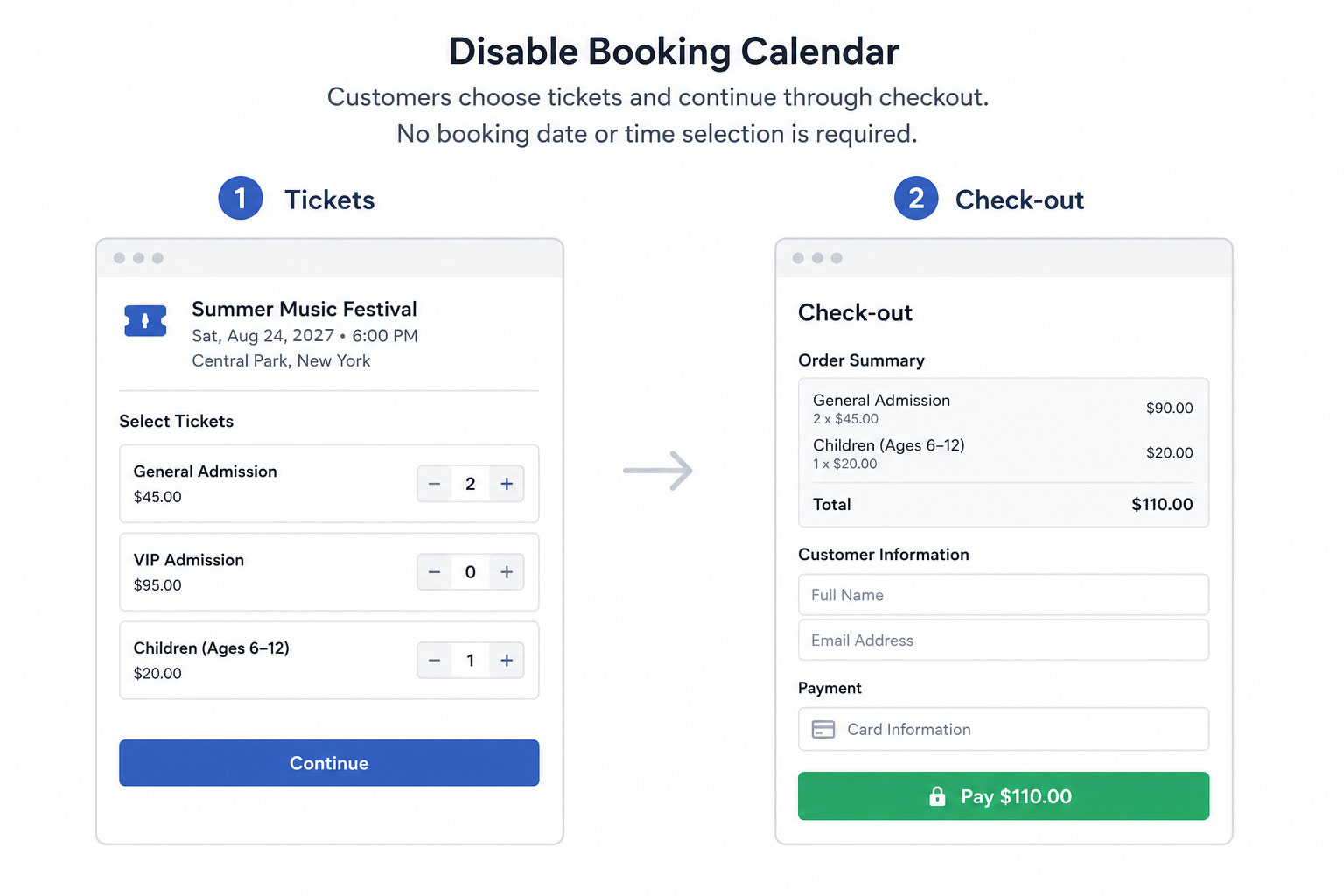
Select Disable Booking Calendar if your event happens on one specific date and time, and customers do not need to choose from multiple dates or time slots.
For example, this option is best for:
- A concert on one night
- A theater show with one performance time
- A fundraiser with one start and end time
- A school event that happens once
- A sports game with one scheduled time
When this option is selected, customers will simply choose their tickets and continue through checkout. They will not be asked to select a booking date or time slot.
Enable Booking Calendar #
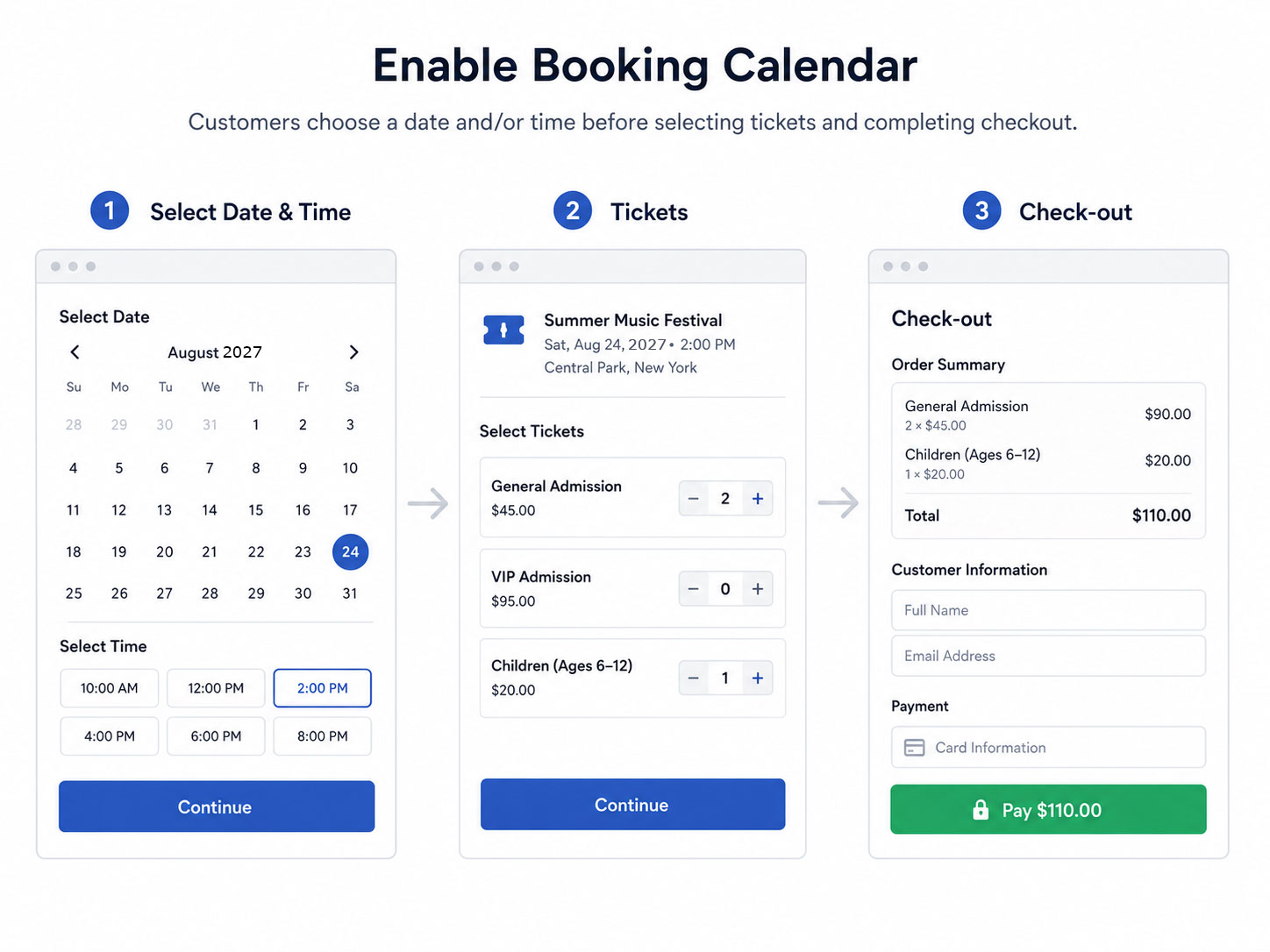
Select Enable Booking Calendar if customers need to choose a specific date and/or time before completing their order.
For example, this option is best for:
- Recurring events
- Daily admission tickets
- Timed-entry events
- Museums and attractions
- Tours
- Classes
- Workshops
- Events with different sessions
- Events where ticket availability depends on the date or time
When the booking calendar is enabled, you will also need to choose a Booking Flow.
The booking flow controls the order in which customers select their date, time, and tickets during checkout.
Booking Flow #
After enabling the booking calendar, you will see the Booking Flow setting.
This setting lets you choose how customers move through checkout when booking dates and time slots are required.
There are two booking flow options:
- Date & Time First
- Tickets First, Date & Time After (Multiple Calendars)
Both options allow customers to select tickets and booking dates, but they work in a different order and are useful for different event setups.
Date & Time First #
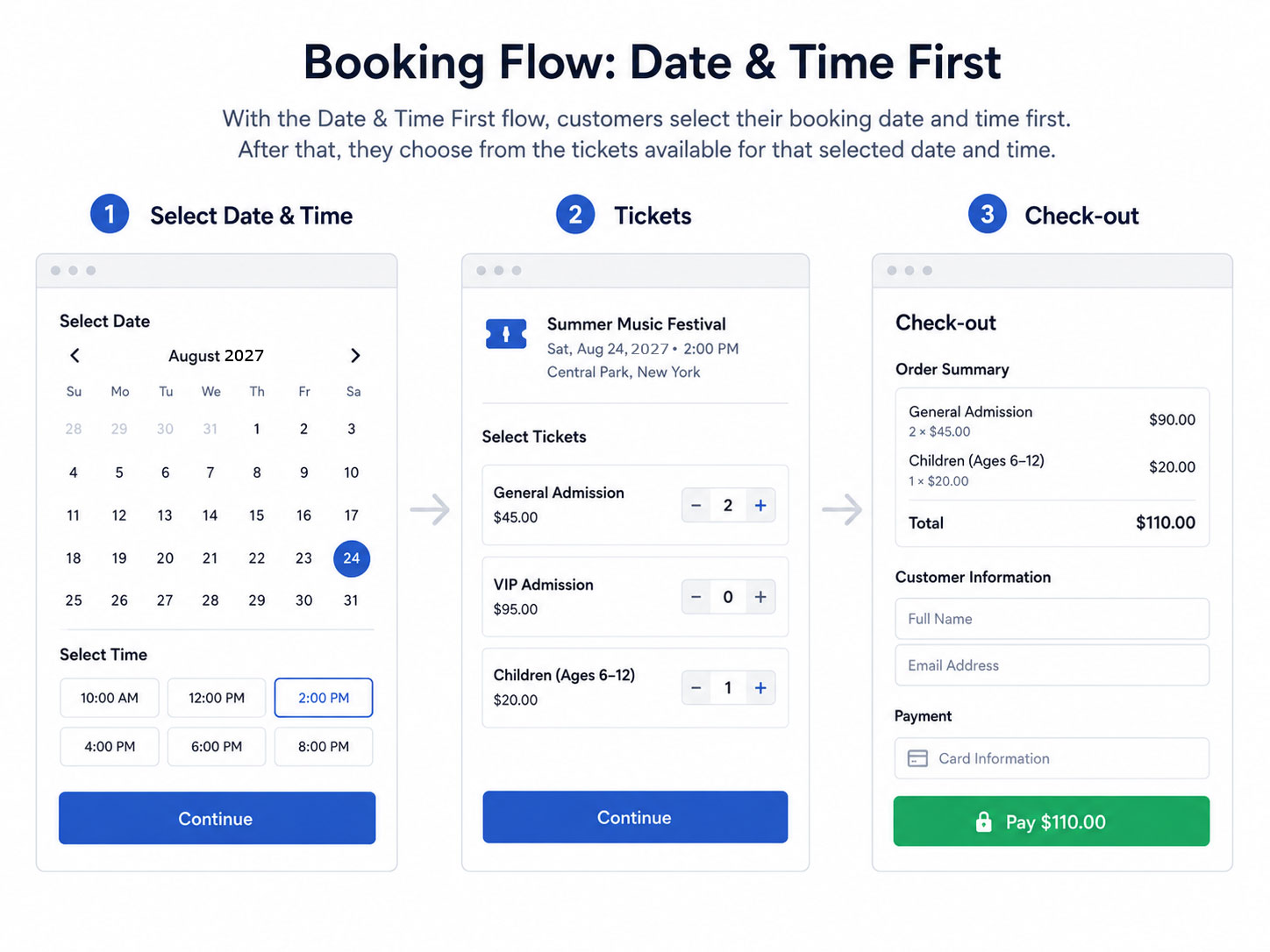
With the Date & Time First flow, customers select their booking date and time first. After that, they choose from the tickets available for that selected date and time.
This is the more traditional checkout flow.
The customer experience works like this:
- Customer opens your event page.
- Customer selects a date and time from the booking calendar.
- Customer sees the tickets available for that booking.
- Customer selects tickets and continues to checkout.
This flow is best for simple event setups where all tickets follow the same schedule.
For example, this option works well if you have one calendar with the same available dates and times for all ticket types.
Example:
You run a museum that is open Monday through Sunday from 10:00 AM to 5:00 PM. You sell Adult, Child, and Senior tickets, and all ticket types are available for the same dates and times.
In this case, the Date & Time First flow is a good option because all ticket types follow the same calendar.
Benefits of Date & Time First #
The Date & Time First flow is simple and familiar to many customers. It is best when the date and time are the main thing customers need to choose before selecting tickets.
This option can be useful when:
- You only need one booking calendar
- All tickets are available on the same dates and times
- Your event has a simple schedule
- You want customers to choose their visit date before seeing tickets
- You do not need separate schedules for different ticket types
Important Limitation #
The Date & Time First flow does not support multiple custom calendars.
This means all tickets need to use the same booking calendar and the same set of available dates and time slots.
If you need different tickets to have different schedules, you should use the Tickets First, Date & Time After (Multiple Calendars) option instead.
Tickets First, Date & Time After (Multiple Calendars) #
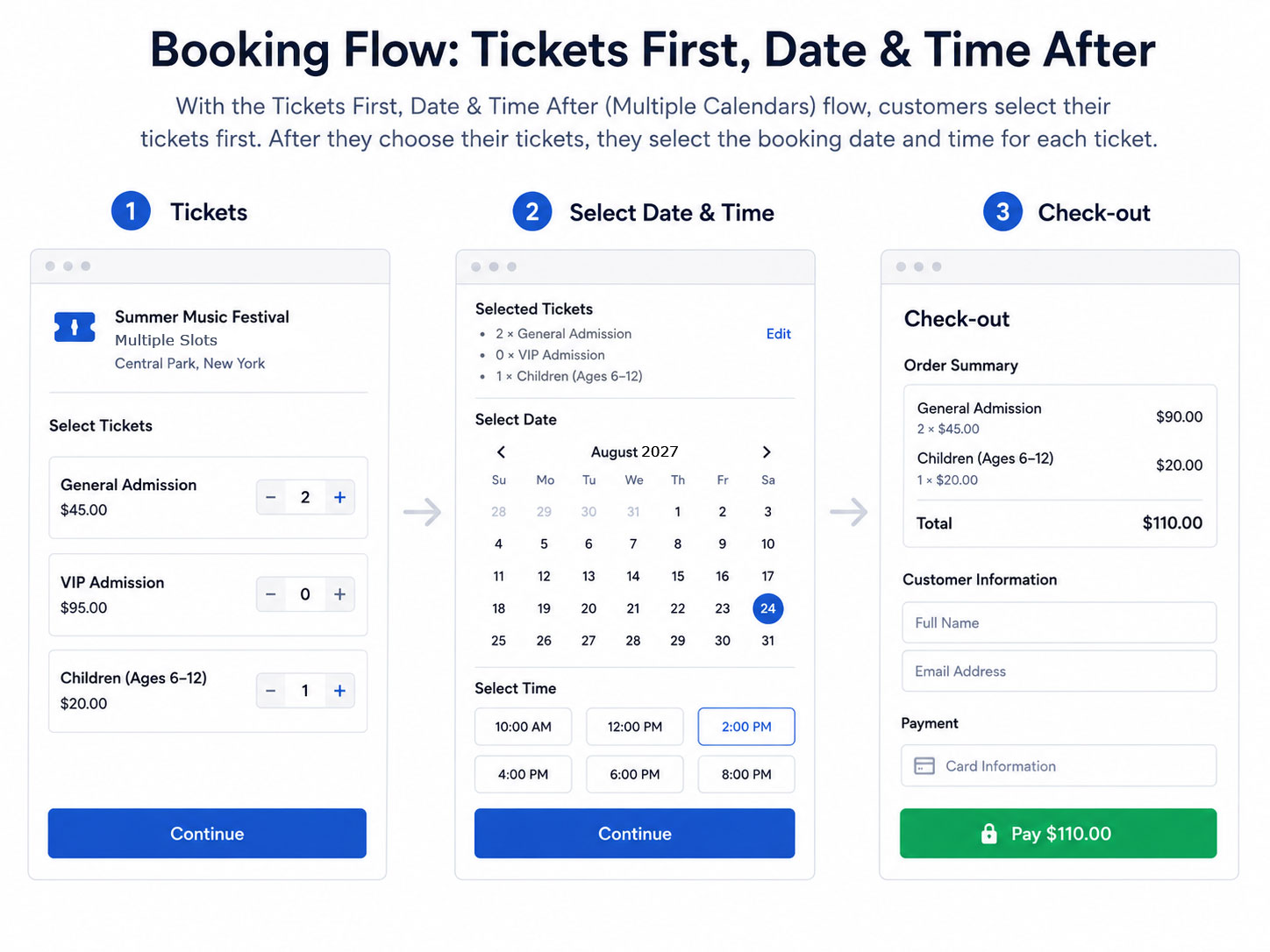
With the Tickets First, Date & Time After (Multiple Calendars) flow, customers select their tickets first. After they choose their tickets, they select the booking date and time for each ticket.
The customer experience works like this:
- Customer opens your event page.
- Customer selects the ticket or tickets they want.
- Customer continues to the next step.
- Customer selects the date and time connected to each selected ticket.
- Customer continues to checkout.
This flow is best when different ticket types need different calendars, schedules, or time slots.
For example, you may have one ticket that is available only on weekdays and another ticket that is available only on weekends. Instead of using one calendar for both tickets, you can create separate calendars and connect each ticket to the correct calendar.
Example:
You sell two ticket types:
- General Admission – available Monday through Friday
- VIP Admission – available only on Saturday and Sunday
You can create one calendar for weekday availability and another calendar for weekend availability. Then you can connect the General Admission ticket to the weekday calendar and the VIP Admission ticket to the weekend calendar.
This way, each ticket only shows the dates and times that apply to that specific ticket.
What Are Multiple Calendars? #
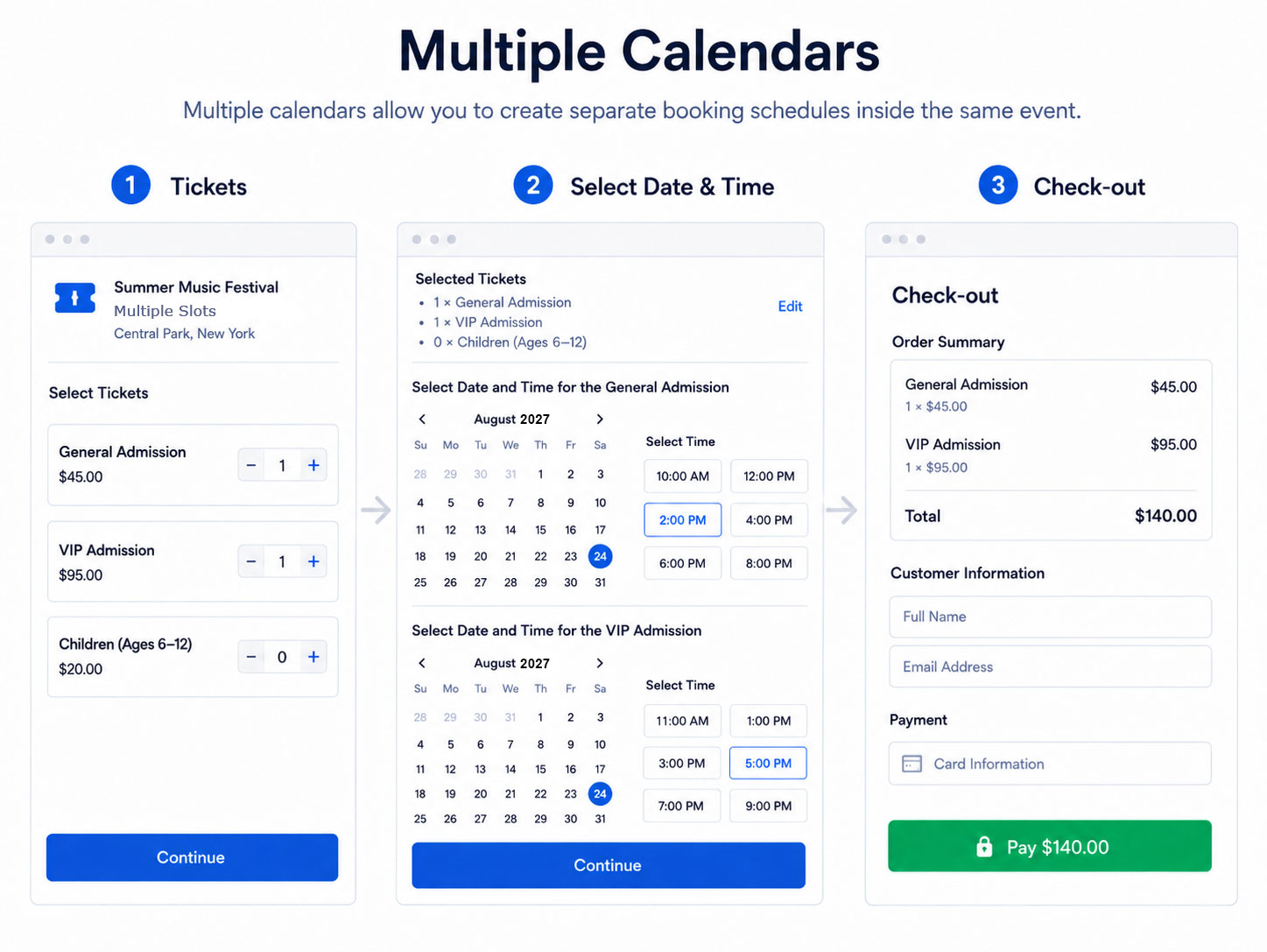
Multiple calendars allow you to create separate booking schedules inside the same event.
Each calendar can have its own dates, time slots, and availability. After creating calendars, you can connect specific tickets to specific calendars.
This gives you more control over which tickets are available on which dates and times.
For example, multiple calendars can help when:
- One ticket is available on weekdays, and another ticket is available on weekends
- VIP tickets are only available at certain times
- Special tours have a different schedule from regular admission
- Classes or workshops happen at different times
- Different ticket types have different capacities
- Add-ons or special access options should only be available for certain sessions
- You need separate schedules for different rooms, attractions, guides, or experiences
Why Tickets First Works Better for Multiple Calendars #
When multiple calendars are used, it is usually clearer for the customer to choose tickets first.
This is because each ticket may have its own calendar.
If calendars were shown first, the customer might see multiple calendars without knowing which one applies to which ticket. This could make the checkout process confusing.
With the Tickets First, Date & Time After flow, the customer first chooses the ticket they want. Then the system shows the booking calendar connected to that specific ticket.
This makes the process easier to understand because the customer only sees the date and time options that apply to the tickets they selected.
One Calendar vs. Multiple Calendars #
One Calendar #
A single calendar is best when all tickets share the same schedule.
Use one calendar if every ticket should be available on the same dates and times.
Example:
- Adult Ticket
- Child Ticket
- Senior Ticket
All three tickets are available every day from 10:00 AM to 5:00 PM.
In this case, one calendar is usually enough.
Multiple Calendars #
Multiple calendars are best when different tickets need different schedules.
Use multiple calendars if some tickets should only be available on certain dates, certain days of the week, or certain time slots.
Example:
- General Admission is available Monday through Friday
- VIP Admission is available Saturday and Sunday
- Guided Tour is available only at 11:00 AM and 2:00 PM
- Evening Admission is available only after 6:00 PM
In this case, multiple calendars give you much better control.
Which Booking Flow Should I Choose? #
Choose Date & Time First if your event has one simple schedule and all tickets are available for the same dates and times.
Choose Tickets First, Date & Time After (Multiple Calendars) if different tickets need different schedules, dates, time slots, or availability rules.
In general:
- Use Date & Time First for simple events with one calendar.
- Use Tickets First, Date & Time After for more advanced events with multiple calendars or different ticket schedules.
If you are not sure which option to use, start with Date & Time First for a simple setup. If you later need different schedules for different tickets, use Tickets First, Date & Time After (Multiple Calendars).


